Guide
Installing Pinguin and Sending Your First Slack Broadcast
A step-by-step walkthrough for installing Pinguin on Slack and sending your first broadcast.
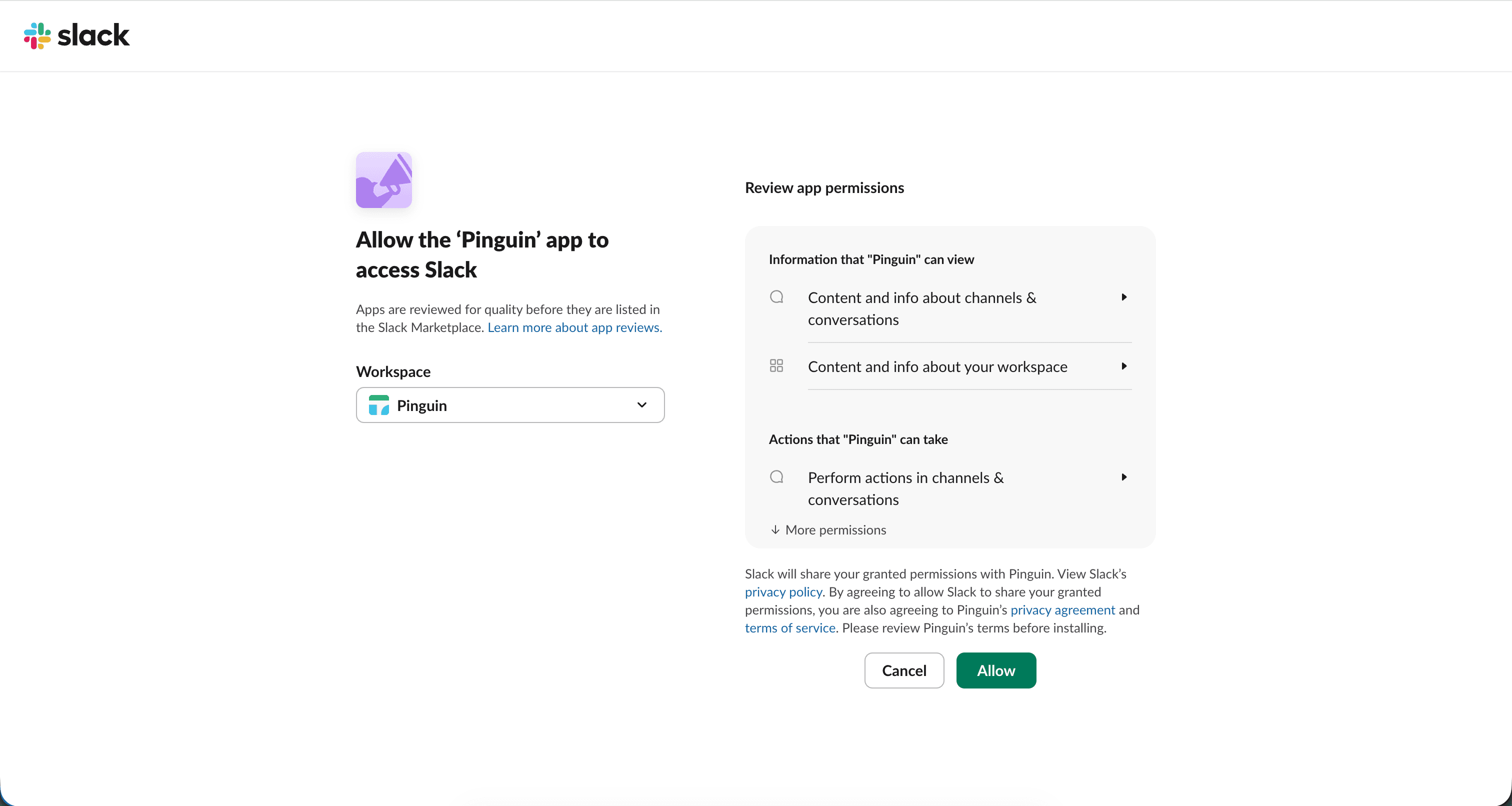
Install Pinguin
Press the "Add to Slack" button and you'll be prompted to install Pinguin on your Slack workspace.
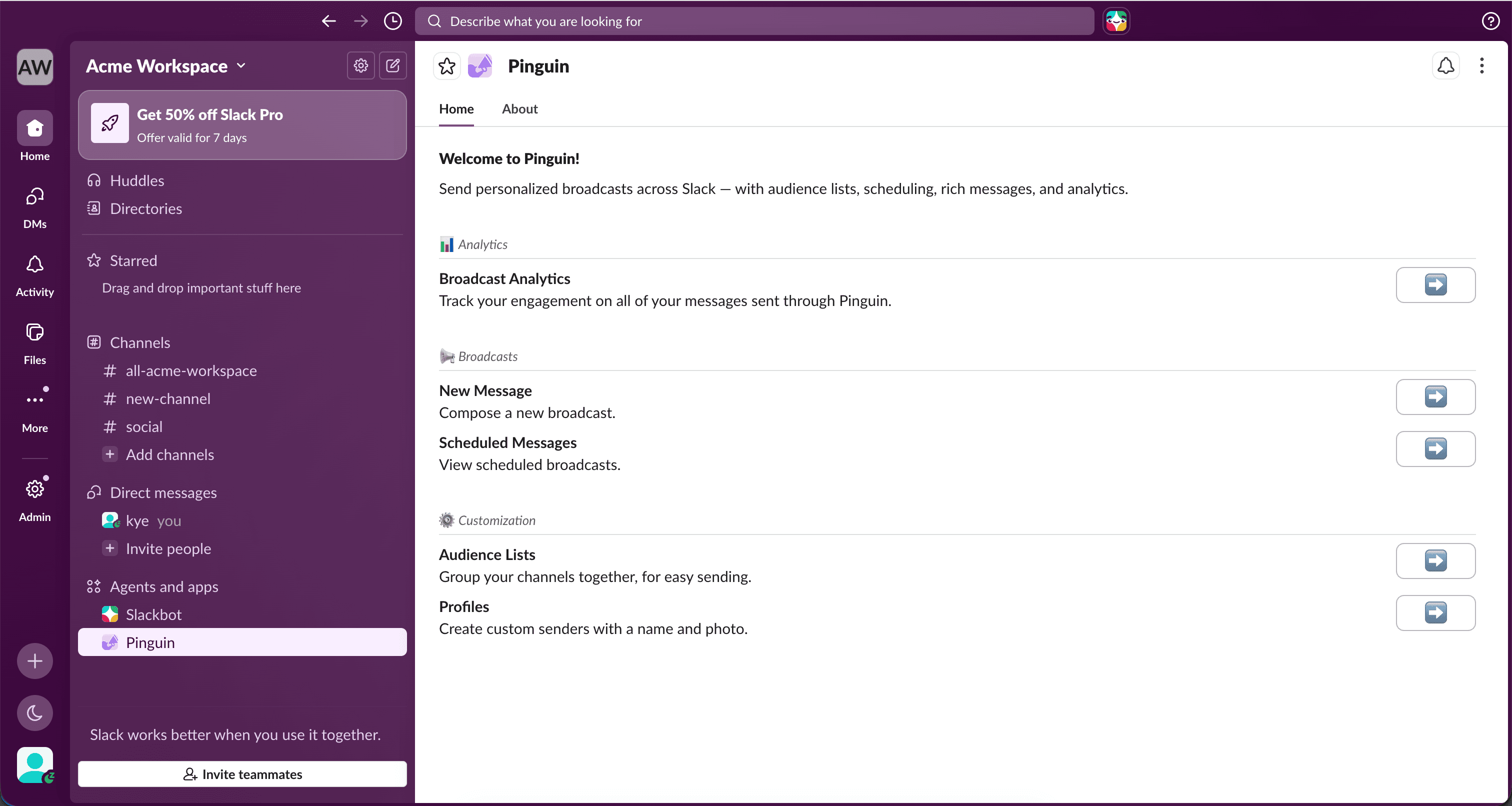
Open the Home tab
Pinguin is now installed in your workspace. Open the "Home" tab to view all available options.
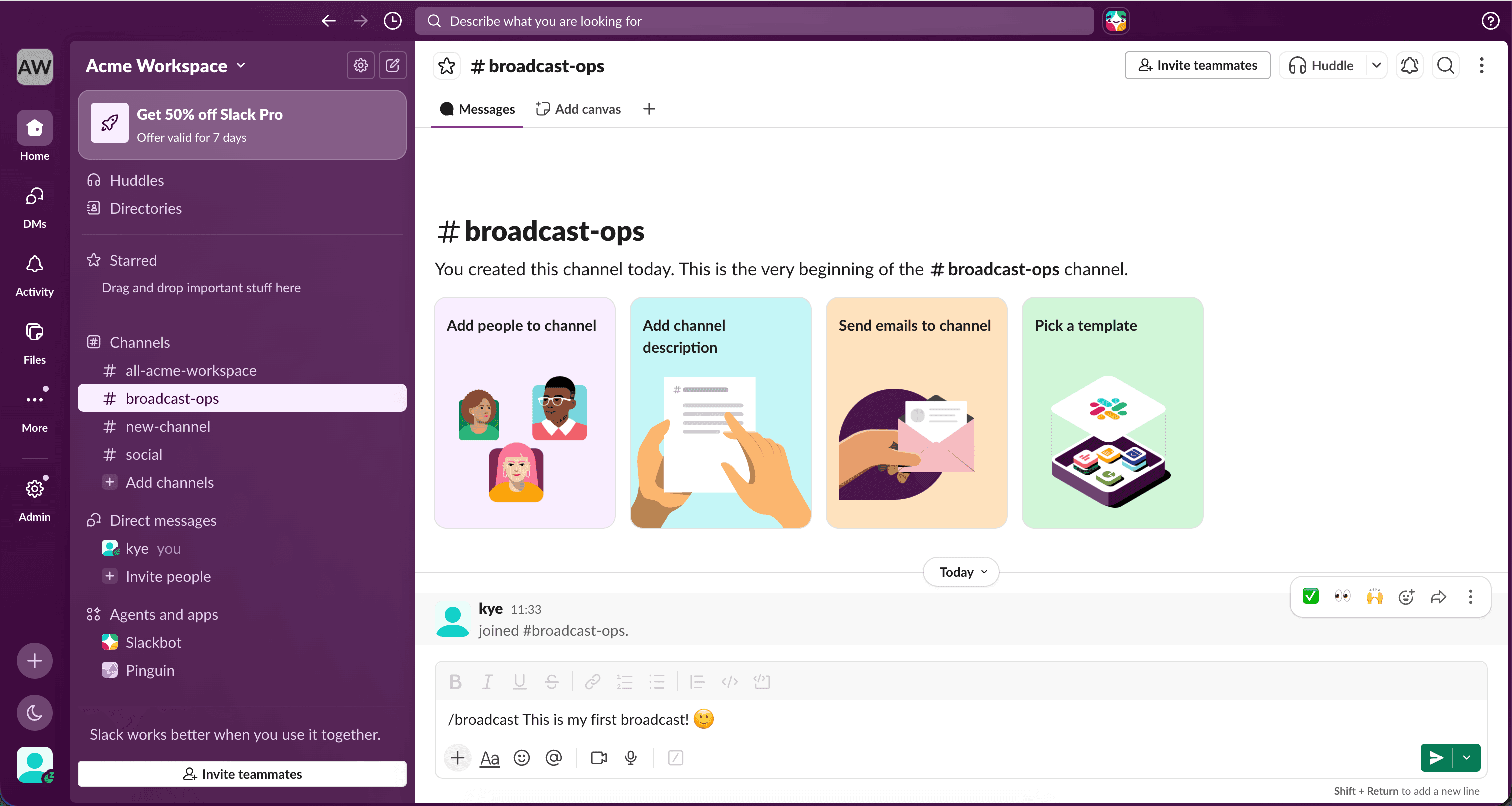
Create a broadcast
To create a broadcast, type /broadcast followed by your message.
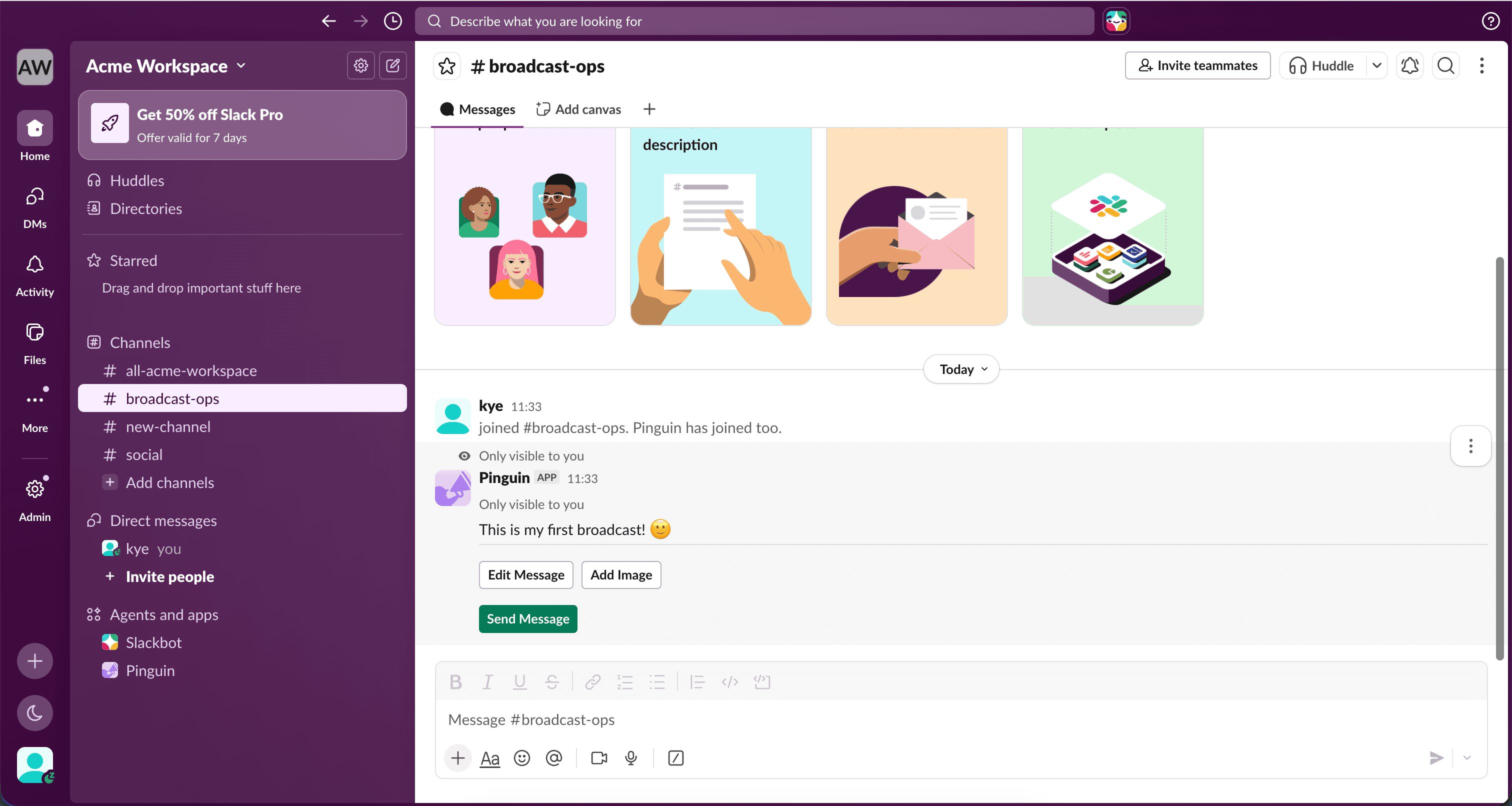
Preview your message
You'll see a live preview where you can add an image, edit your broadcast, or send it.
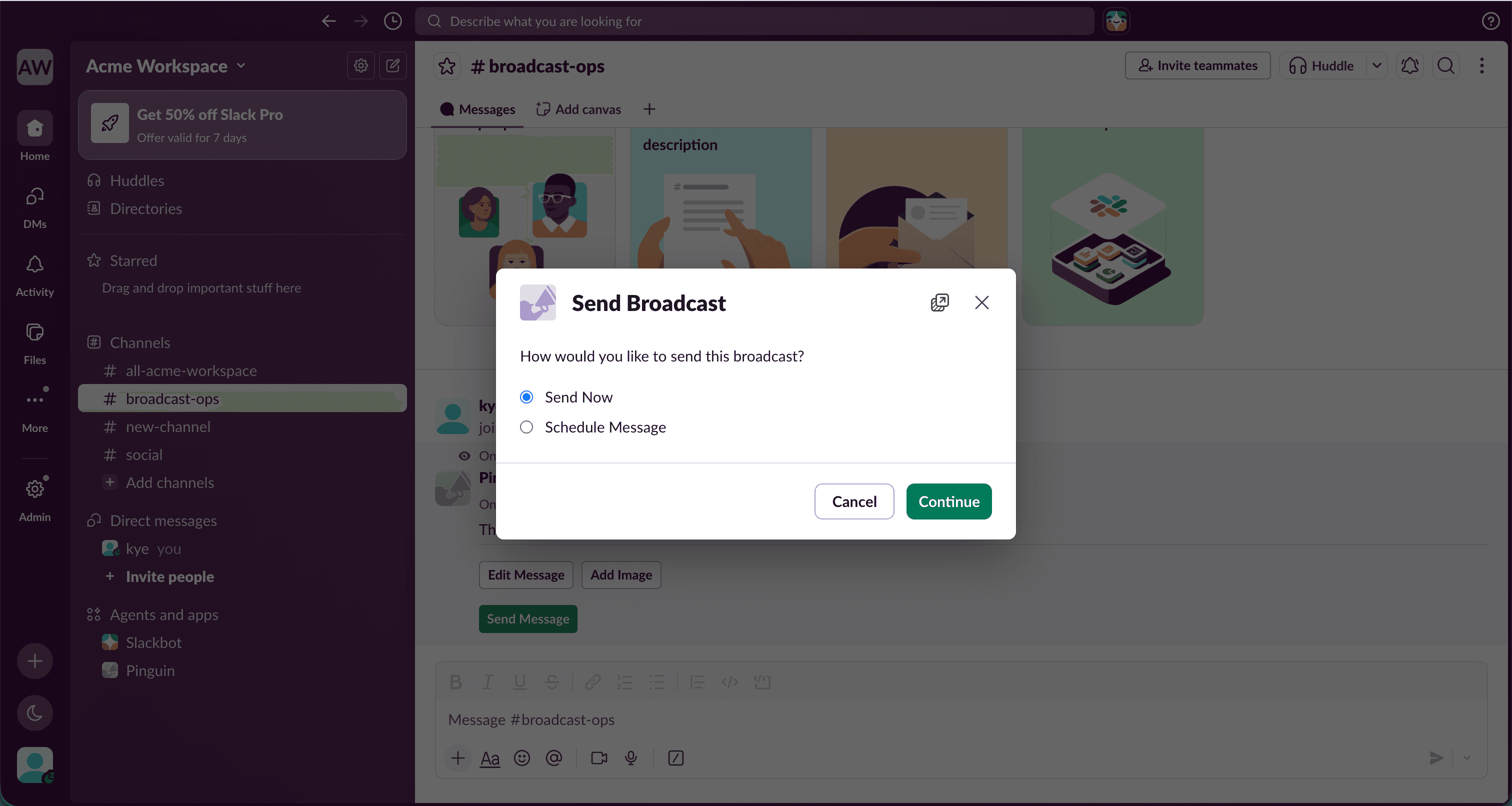
Send or schedule
When you're ready, choose to schedule your broadcast or send it now.
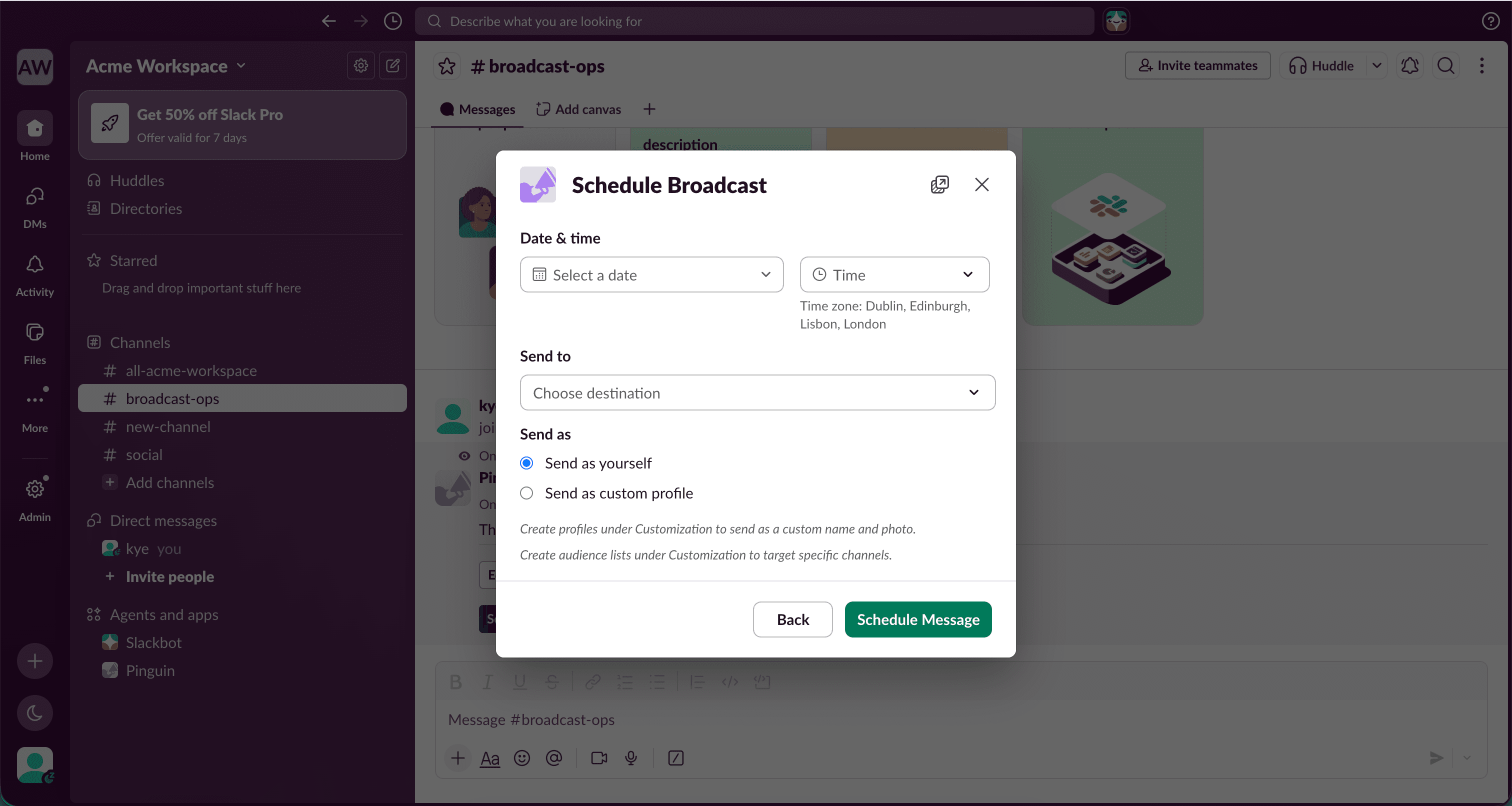
Pick a date and time
Scheduling lets you pick a date and time for your broadcast to go out.
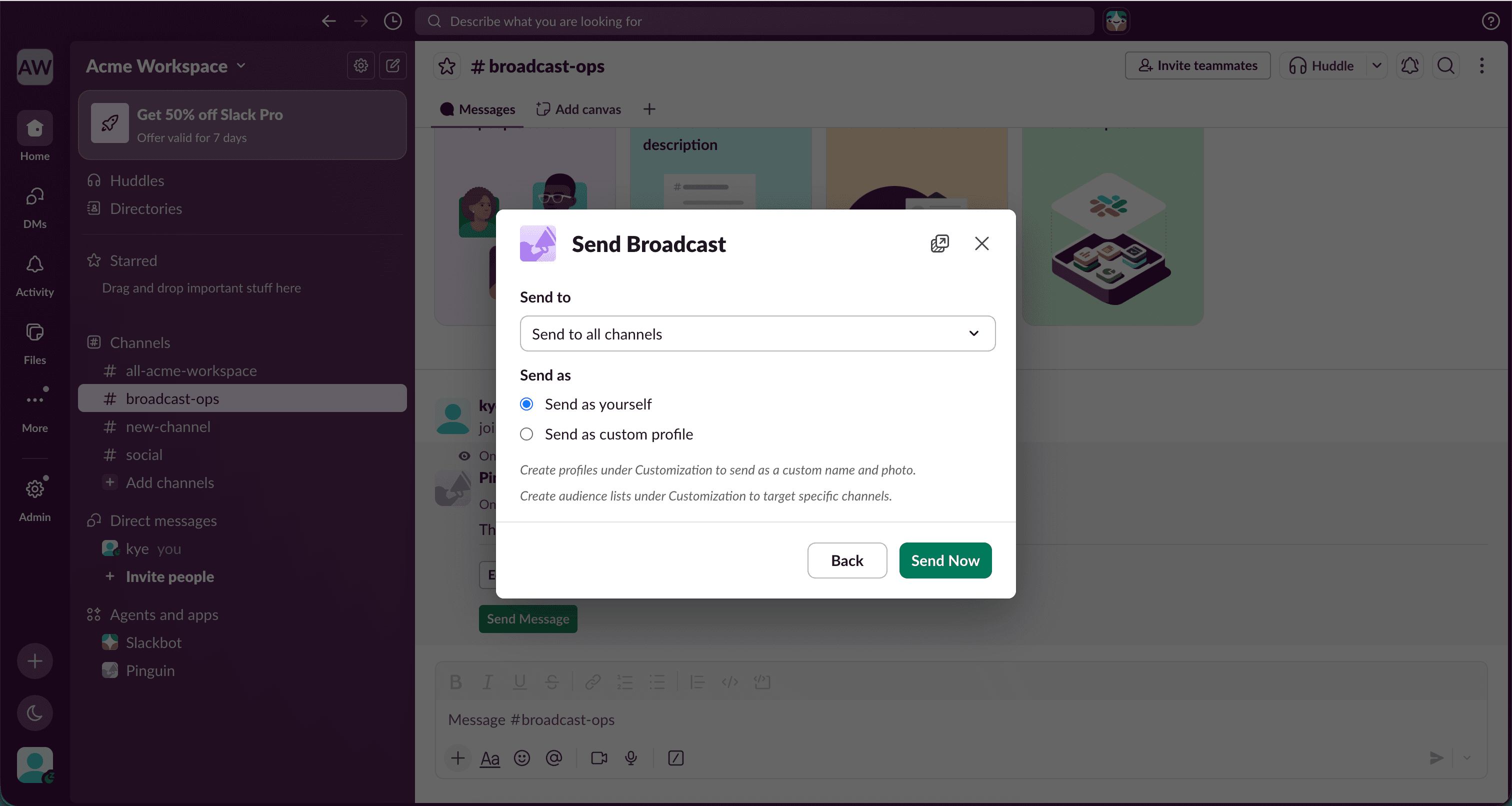
Choose destination and sender
Both options let you choose a destination or audience list to send your broadcast to, plus a sender profile.
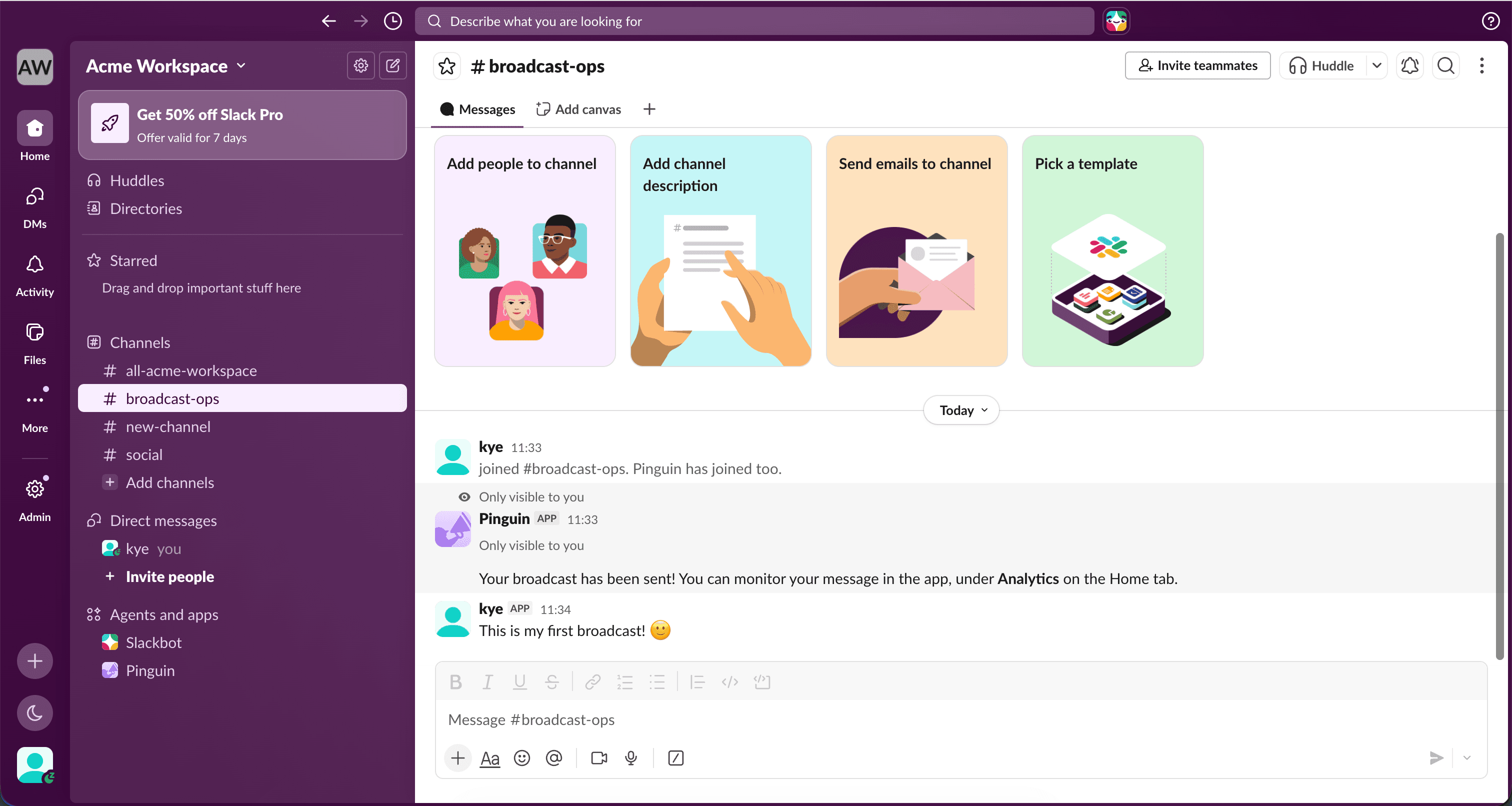
Broadcast sent
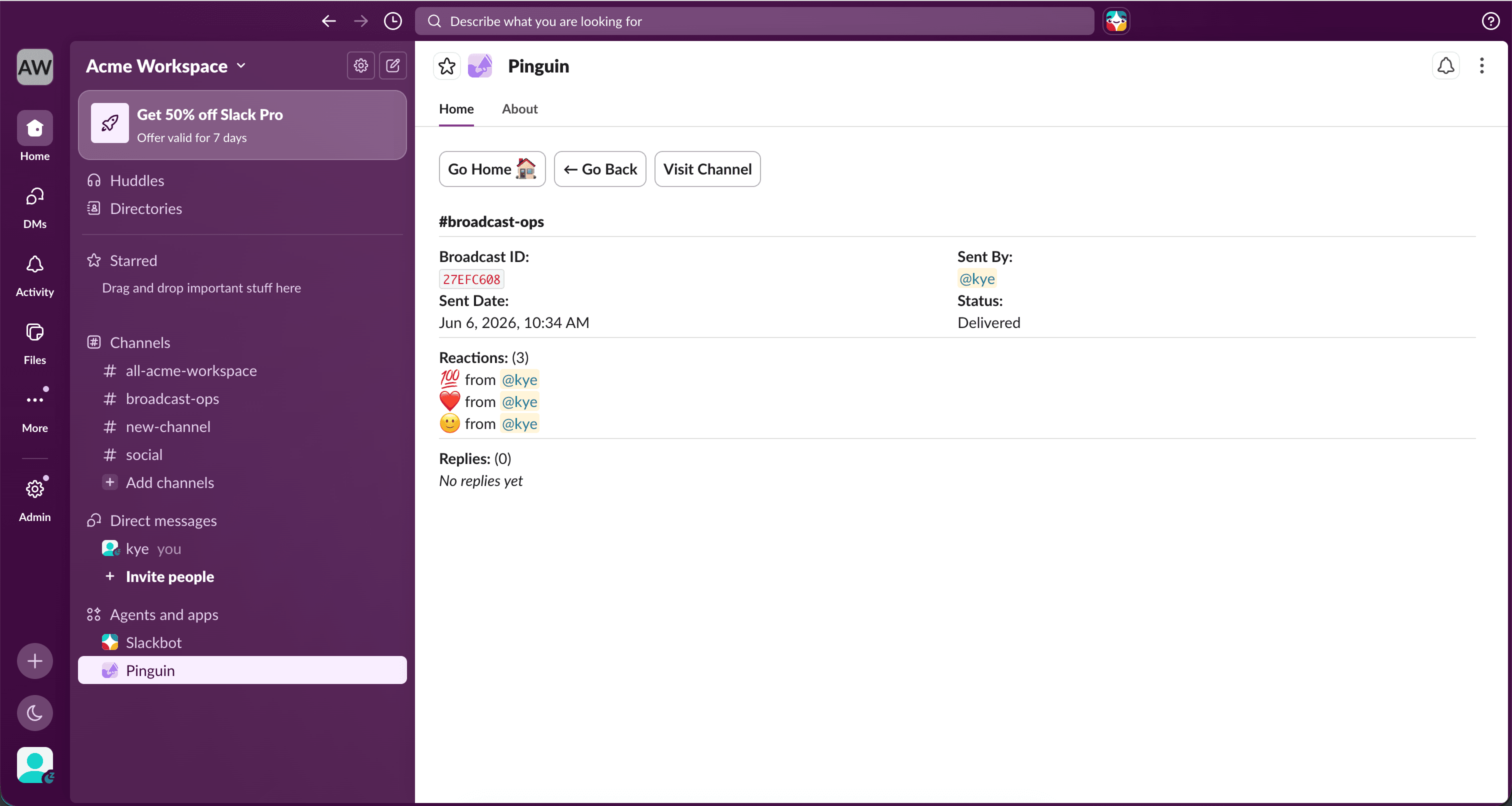
Your broadcast has been sent successfully.
Track engagement
To track engagement, visit the "Analytics" dashboard to see reactions and replies across every channel.