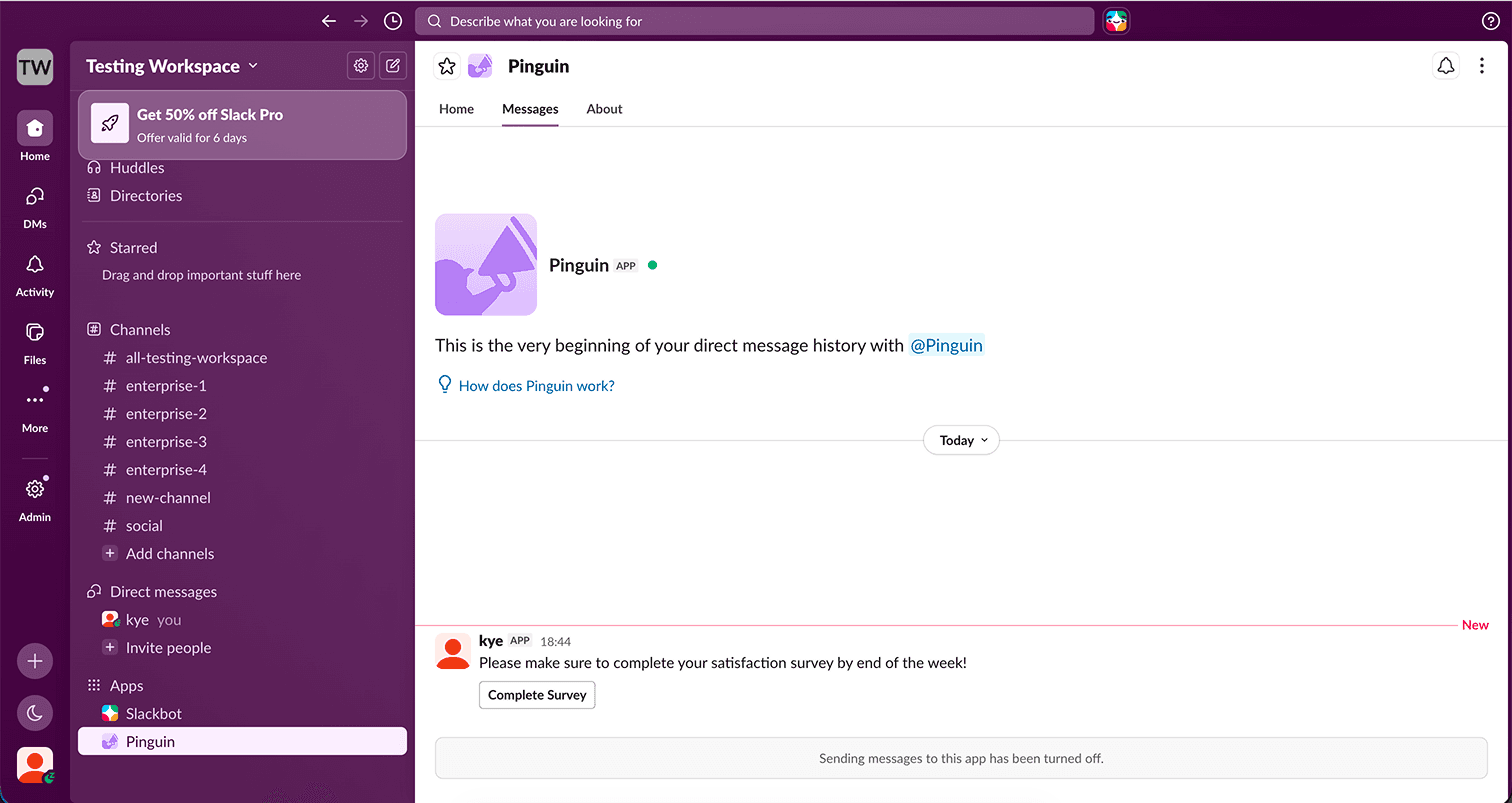
Guide
Adding a CTA Button
A step-by-step walkthrough for adding call-to-action buttons to Pinguin broadcasts and direct messages in Slack.
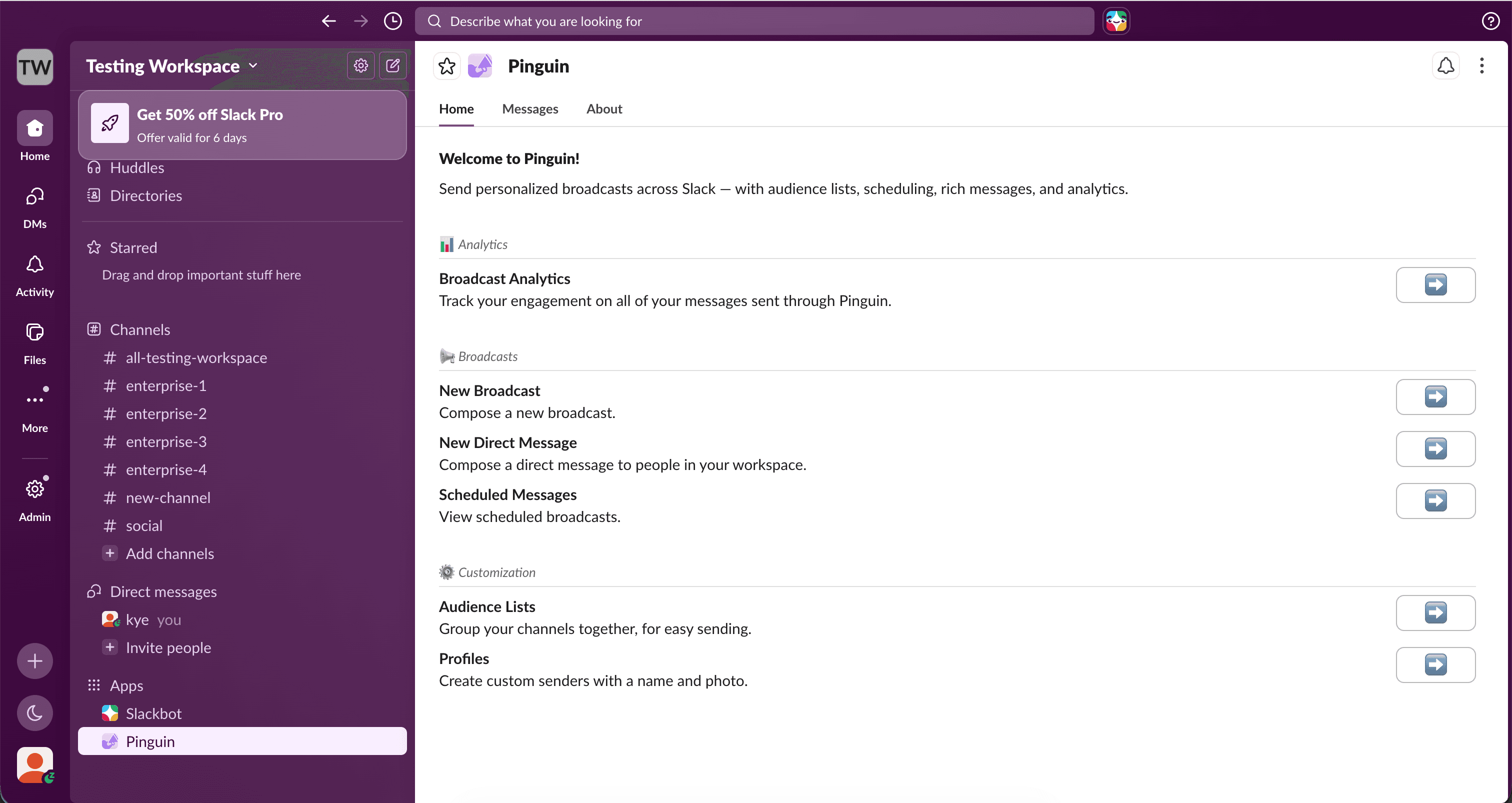
Start a new message
From the Pinguin home tab, select either "New Direct Message" or "New Broadcast".
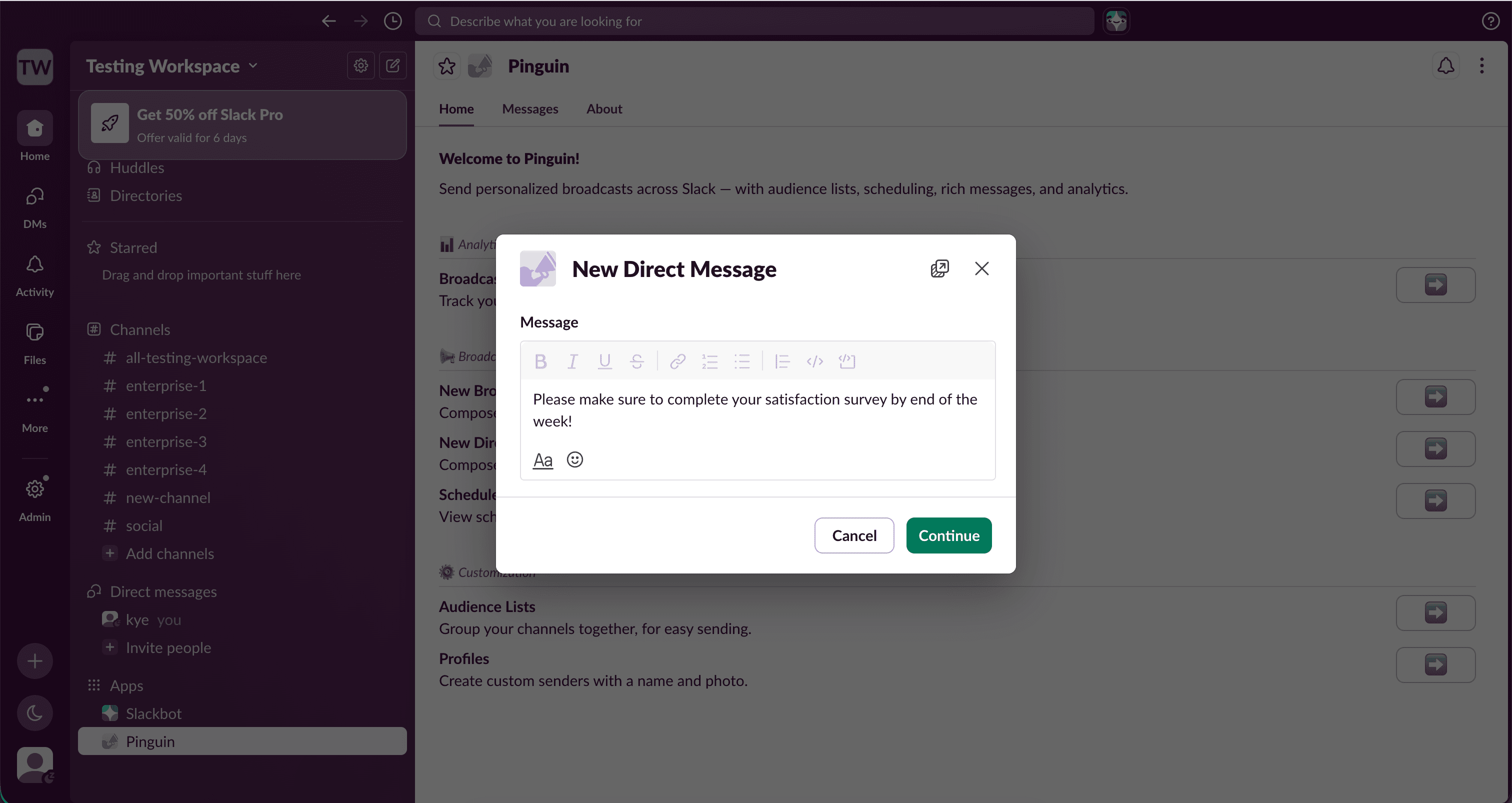
Compose your message
Write your message as normal. You can format the text before adding a CTA button.
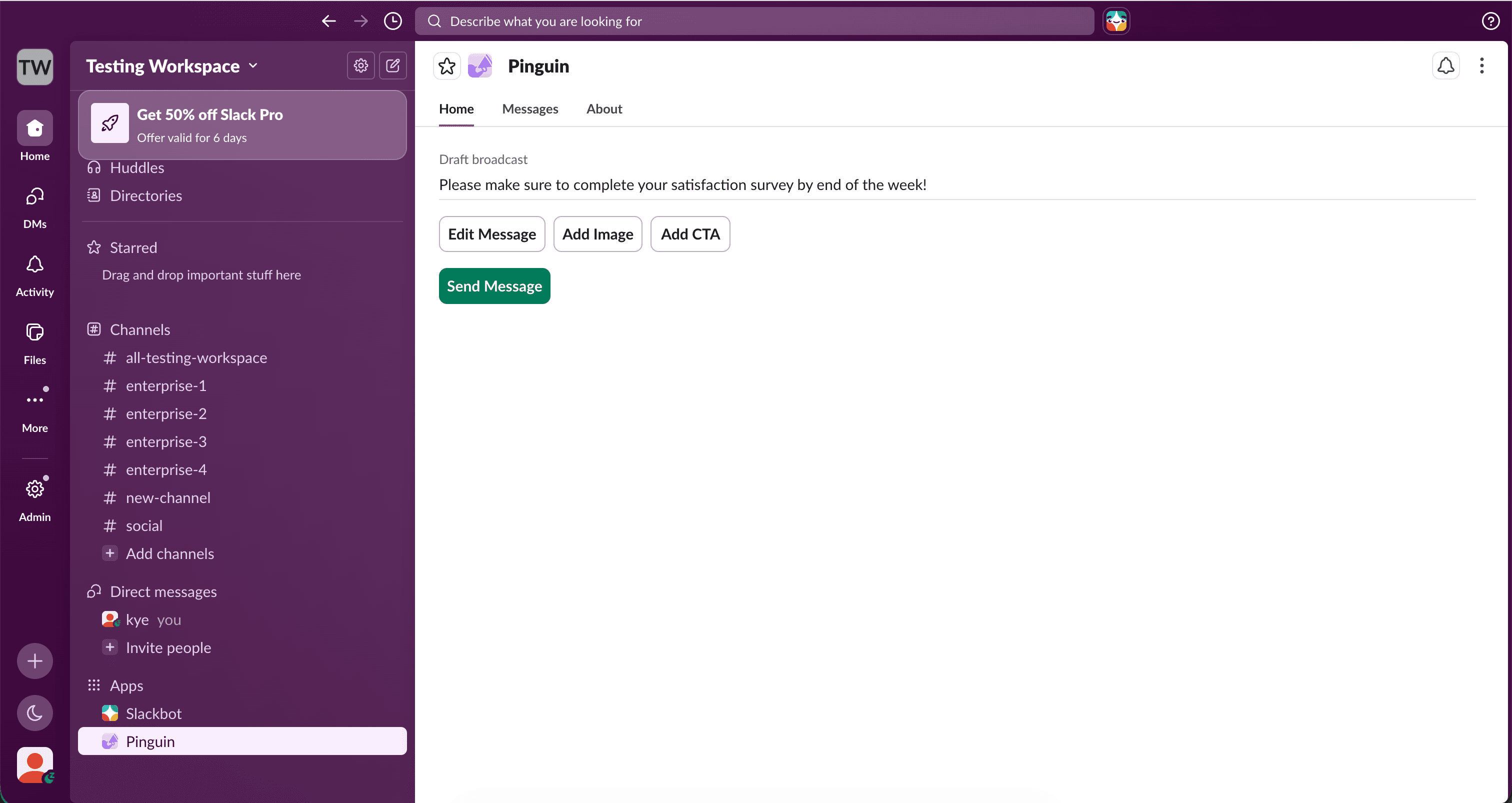
Add a CTA
On the preview screen, select "Add CTA" to attach a button to your message.
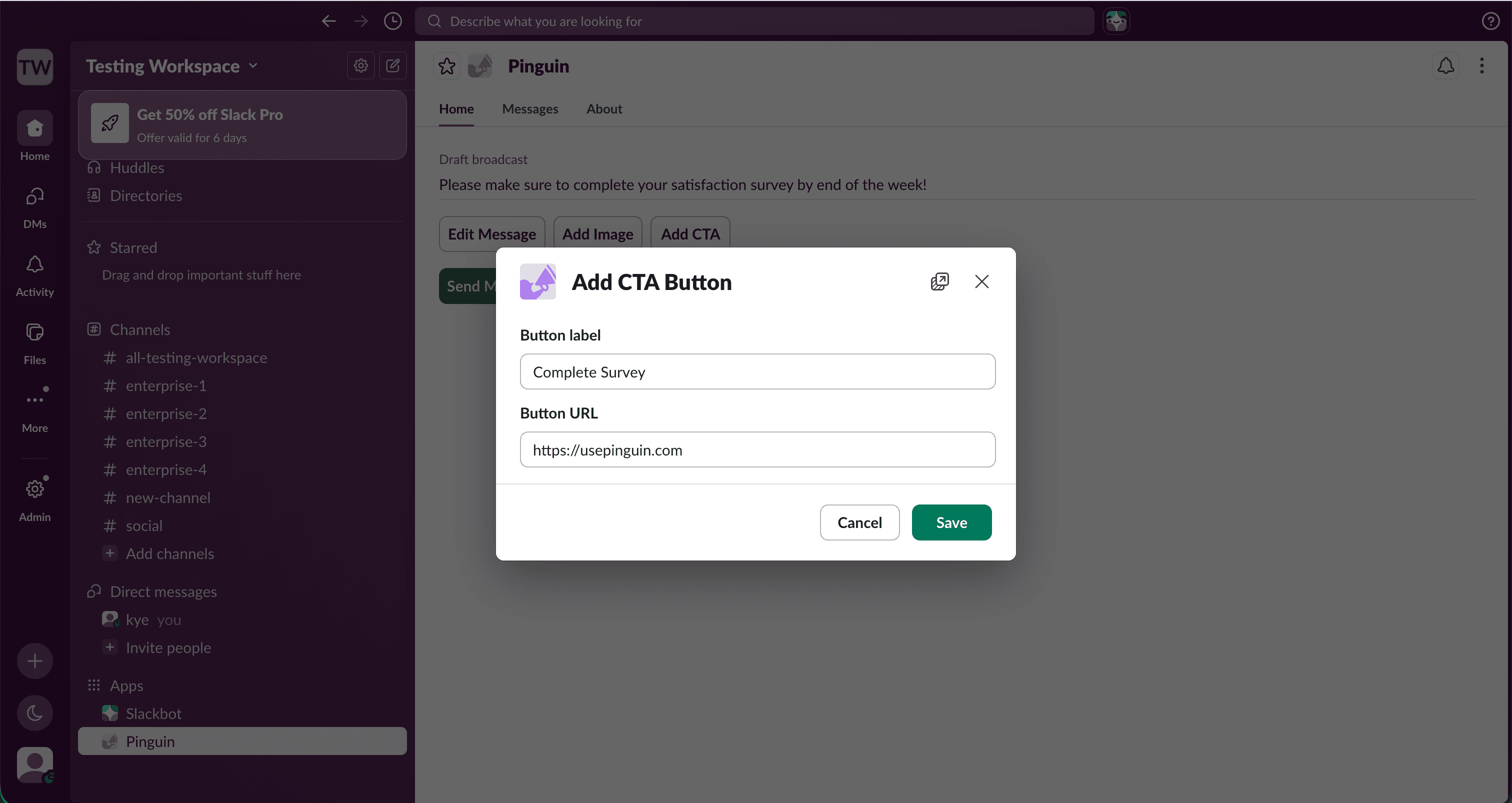
Set the label and link
Add your link and give the button a label. Recipients will see this text when the message is delivered.
Send your message
Send your message or broadcast. Your CTA button will appear below the message text for every recipient.